The ability to schedule emails can dramatically improve your productivity and communication strategy. With iOS 16 and later, Apple Mail introduces a built-in email scheduling feature that allows users to send messages exactly when they want—no third-party apps required.
How to Schedule Emails in Apple Mail on iOS
Apple Mail makes scheduling emails incredibly intuitive. Here’s how:
Why Email Scheduling Is a Game-Changer
Tips for Optimizing Your Scheduled Emails
Beyond Apple Mail: Other Scheduling Tools to Consider
While Apple Mail’s scheduling feature is ideal for most users, some professionals may need more advanced options like read receipts, link tracking, or automated follow-ups. Third-party email clients such asSparkorNewton Mailoffer additional productivity tools while still supporting iOS’s native features.
Key Takeaways
Scheduling Emails with the Mail App on iOS
Email scheduling in Apple Mail isn’t just a convenient feature—it’s a strategic tool that can help you communicate more effectively, respect your recipients’ time, and stay organized. By mastering this feature, you can streamline your workflow, improve engagement, and ensure your emails hit inboxes exactly when they should.
The Mail app on iOS devices now includes built-in emailscheduling features, giving users control over when their messages are sent and improving their email management capabilities.
Understanding Email Scheduling
Email scheduling lets users write emails in advance and set specific delivery times. This feature became available with iOS 16, addressing a long-standing gap in Apple’s Mail functionality.
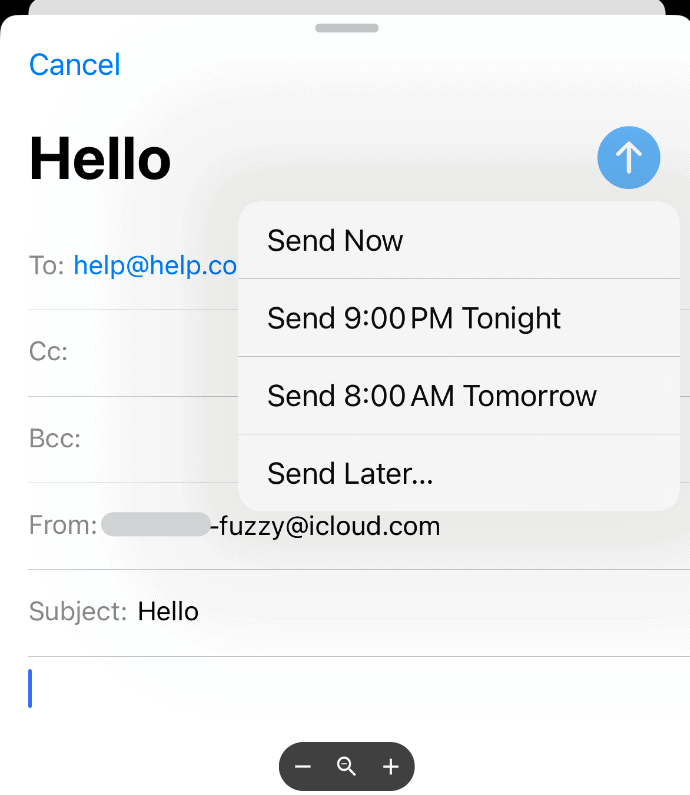
The scheduling option supports both preset times and custom scheduling. Users can pick from suggested times like “Send Tonight” or “Send Tomorrow Morning.”
Custom scheduling allows any future date and time selection. This helps users reach recipients during their working hours or optimal times.
Setting Up Scheduled Emails on iPhone and iPad
To schedule an email, open the Mail app and compose a new message. After writing the email, press and hold the blue send button.
A menu appears with preset scheduling options. Select “Send Later” to choose a custom time and date.
The scheduled email stays in a special “Send Later” mailbox until its delivery time. Users can find this mailbox in the Mail app’s folder list.
Managing Scheduled Emails
Users can view all scheduled emails in the Send Later mailbox. This central location makes it easy to track pending messages.
To modify a scheduled email, open it from the Send Later mailbox. Users can edit the content, change the delivery time, or cancel the scheduled send.
Canceled scheduled emails move back to the Drafts folder. This gives users flexibility to revise or delete them as needed.
Third-Party Mail Applications
Popular email apps like Gmail, Outlook, and Spark offer their own scheduling features. These apps often provide more scheduling options than Apple Mail.
Microsoft Outlook allows scheduling across different time zones. Gmail integrates scheduling with other Google services.
Spark adds features like follow-up reminders and team collaboration tools alongside email scheduling.
These apps work well for users who need advanced email management features beyond Apple Mail’s capabilities.
Frequently Asked Questions
Email scheduling features vary across different email applications, with specific steps and limitations for each platform.
How do you schedule an email to be sent at a later time in Apple Mail on iPhone?
Open theMail appand compose anew email. Press and hold thesend buttonuntil options appear. Select “Send Later” and pick a suggested time or set a custom date and time. The email stays in a dedicated “Send Later” folder until the scheduled time.
What steps are required to send an email at a specified time in the macOS Mail app?
Compose the email in Apple Mail on Mac. Click the arrow next to the send button. Choose “Send Later” from the menu. Select a preset time or customize the date and time. Click “Schedule” to confirm.
Is there a feature to automate sending emails within the Windows 10 Mail application?
The Windows 10 Mail app does not support native email scheduling. Users need to switch to Microsoft Outlook or use third-party email services with scheduling capabilities.
What is the process for scheduling emails in Outlook 365?
Create a new email in Outlook. Click “Options” in the ribbon menu. Select “Delay Delivery” under More Options. Set the delivery date and time in the Properties dialog box. Click “Close” and send the email.
The email stays in the Outbox until the scheduled time. Outlook must be running for delayed emails to send.
How can you schedule an email in Gmail using the desktop interface?
Click “Compose” to create a new email. Click the dropdown arrow next to the “Send” button. Select “Schedule send.” Choose a suggested time or pick a custom date and time. The email moves to a “Scheduled” folder.
Why might the ‘Send Later’ button be missing in Apple Mail, and how can it be resolved?
The Send Later feature requires iOS 16 or newer for iPhones and macOS Ventura or newer for Macs. Update the operating system to access this feature. Check that iCloud Mail is enabled in Settings.
Sign out and back into theiCloud accountif the button remains missing after updates.
