macOS Sequoiaintroduces a new app called Passwords that changes how users manage their login credentials. Built on the strong foundation of Apple’s Keychain, this app consolidates passwords, passkeys, Wi-Fi passwords, and other essential credentials in one secure place.With the new Passwords app, users now enjoy seamlesssynchronization across Mac, iPhone, iPad, and even Windows through iCloud.
One of the standout features of macOS Sequoia’s Passwords app is its integration with Apple Intelligence.This ensures personalized and context-aware suggestions, enhancing the overall user experience. Navigating different platforms without repetitive manual entries becomes straightforward as Passwords integrate smoothly with Safari and other apps.
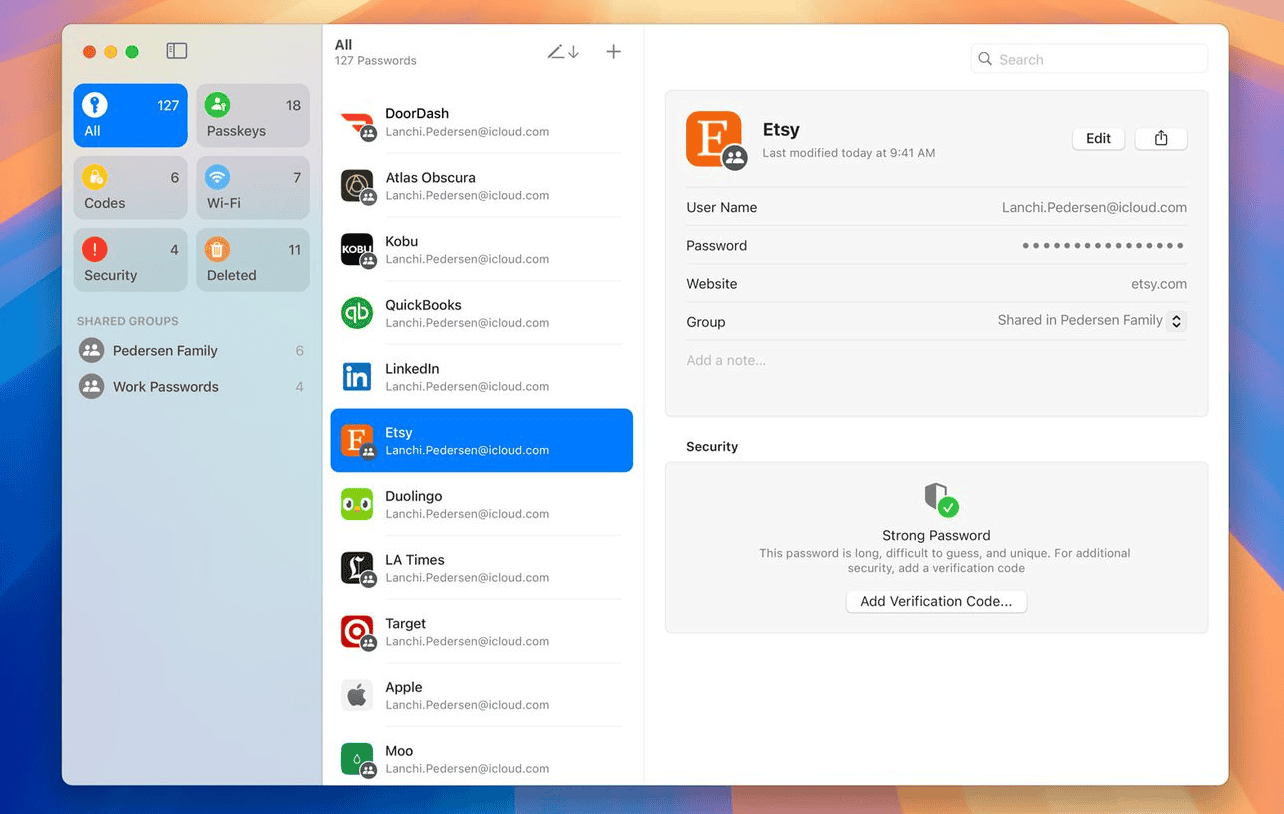
Users can now discard third-party password managers. The built-in Passwords app, backed by end-to-end encryption, provides a simplified yet powerful solution. This level of integration with various Apple devices and platforms makes the Passwords app a noteworthy enhancement in macOS Sequoia.
Your Digital Vault: macOS Sequoia’s Passwords App
Centralized Credential Management
The Passwords app acts as a central hub for all your login credentials. It securely stores usernames, passwords, passkeys, Wi-Fi passwords, and other sensitive information. This eliminates the need to remember multiple passwords or scramble through different apps and browsers to find your login details.
Seamless iCloud Syncing
With iCloud integration, the Passwords app ensures your credentials are securely synced across all your Apple devices. This means you can access your passwords on your Mac, iPhone, iPad, or even your Apple Vision Pro headset, making it convenient to log into websites and apps wherever you are.
Enhanced Security with Passkeys
The Passwords app embraces passkeys, a next-generation authentication method that replaces traditional passwords. Passkeys are more secure and resistant to phishing attacks, as they are unique to each website or app and never leave your device.
Intuitive Organization and Search
The app’s interface is designed for easy navigation and quick access to your passwords. you may organize your credentials into groups or folders, and a powerful search function helps you find the information you need in seconds.
AutoFill and Strong Password Generation
The Passwords app integrates seamlessly with Safari, automatically filling in your login credentials on websites. It also suggests strong, unique passwords for new accounts, enhancing your online security.
Key Features of macOS Sequoia Passwords App
Key Takeaways
Understanding MacOS Sequoia’s Passwords App
The Passwords app in macOS Sequoia introduces a centralized, dedicated service for managing your login credentials seamlessly across devices. It leverages AI and tight integration with theApple ecosystemto provide auser-friendly, secure experience.
Features and Capabilities
The Passwords app offers a range of features to simplify password management. Users canstore and organizetheir login credentials for websites, apps, and Wi-Fi networks in one place. The app providesAutoFillcapabilities, allowing quick and easy form filling on Safari and other supported apps.
Sharing passwords securely is now possible through AirDrop and by creating shared groups. The app also supportsPasskeys, enabling passwordless sign-ins for enhanced security. Apple has included tools to generate strong passwords, monitor potential breaches, and alert the user if any saved password is compromised.
Integration with Apple Ecosystem
The Passwords app integrates deeply with Apple’s ecosystem. It syncs across iPhone, iPad, Mac, and Apple Vision Pro usingiCloud Keychain, ensuring seamless access to passwords on all devices. WithContinuity, users can create or update passwords on one device and immediately use them on another.
The app works well with Apple’sSafaribrowser, making it capable of auto-filling login credentials across the web. Furthermore, it enhances productivity by letting users access passwords via the new Passwords section in theSettingsapp on iOS and macOS. This integration reduces dependency on third-party password managers like 1Password.
Security and Privacy Considerations
Security is at the core of the Passwords app in macOS Sequoia. It usesend-to-end encryptionto protect user data stored viaiCloud Keychain. This means that only the user can access their credentials, as even Apple cannot decrypt this data. The app also providestwo-factor authenticationsupport for added security.
It has built-in alerts for compromised passwords, ensuring users can act swiftly to update their credentials. By emphasizing strong password generation and monitoring for security breaches, the Passwords app offers a reliable and secure solution for managing personal and professional passwords on Mac devices.
Optimizing User Experience
The Passwords app in macOS Sequoia offers tools and features to simplify password management and enhance security. Users can benefit greatly by following usage tips and addressing common issues.
Usage Tips and Best Practices
To make the most of the Passwords app, firstimport existing passwordsfrom a third-party manager. This offers a seamless transition and centralizes credential storage.
Next,regularly update your passwordsusing the app’s built-in suggestions. The app can generate strong passwords which improve security.
The app also handlesWi-Fi passwordsandverification codes. Users can save these details within the app for quick access.
The Passwords app integrates withContinuity features. This allows easysynchronization across deviceslike iPhone oriPad. Access is seamless, ensuring no disruption in workflow.
Lastly, configure settings to enableauto-fillwithin Safari and other apps. This reduces the need to manually enter credentials.
Troubleshooting Common Issues
If you encounter issues, firstcheck the app’s settingswithin the Settings app. Ensure sync options are enabled.
For problems with auto-fill, verify thatSafari settingsare correctly configured. Check for updates through the Mac App Store in case the app itself needs an update.
If passwords don’t sync, restart your device. Ensure you’re signed into iCloud on all devices.
In case of app crashes or glitches,re-install the app. Use the latest version available, especially if using the Beta releases.
When importing passwords, if errors occur, try exporting from the original manager to a different file format before re-importing into Passwords.
For help,contact Apple Supportor visit forums where developers and users discuss solutions related to macOS Sequoia.
