Transforming your iPhone’s Lock Screen is easy with live wallpapers. Bring your screen to life with these dynamic and engaging options, whether you choose to use Live Photos, videos, or third-party apps. Customizing the appearance of your iPhone can make it feel more personal. One popular way to do this is by using live wallpapers on the lock screen. Live wallpapers are dynamic backgrounds that add movement and depth to the screen.
you’re able to choose from your own Live Photos or use the stock options available in the latest iOS. Setting up a live wallpaper is simple and can enhance your experience with your iPhone. Whether you want to add some flair to your screen or just enjoy something new, live wallpapers can make your iPhone more lively and unique.
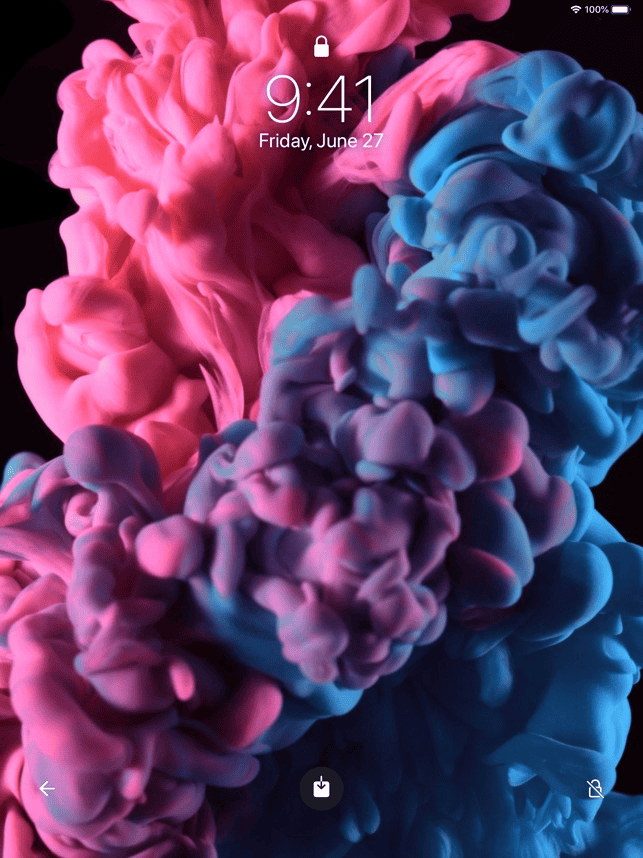
Creating Live Wallpapers on Your iPhone
Using Live Photos
Using Videos
Live Wallpaper Apps
Additional Tips
Table: Live Wallpaper Options
Key Takeaways
Creating Live Wallpapers on iPhone
Adding a live wallpaper to your iPhone can give your lock screen a personalized and dynamic look. This guide will walk you through creating live wallpapers using different methods and setting them up on your iPhone.
Using Photos App for Live Photos
The Photos app on your iPhone is the simplest way to create Live Photos, which can be set as live wallpapers. Users with an iPhone 6s or later model can take Live Photos directly from the camera app. Here’s how:
These Live Photos can be set as wallpaper on both the lock screen and home screen, bringing motion to your iPhone whenever you press down on the screen.
Using Video Clips and GIFs
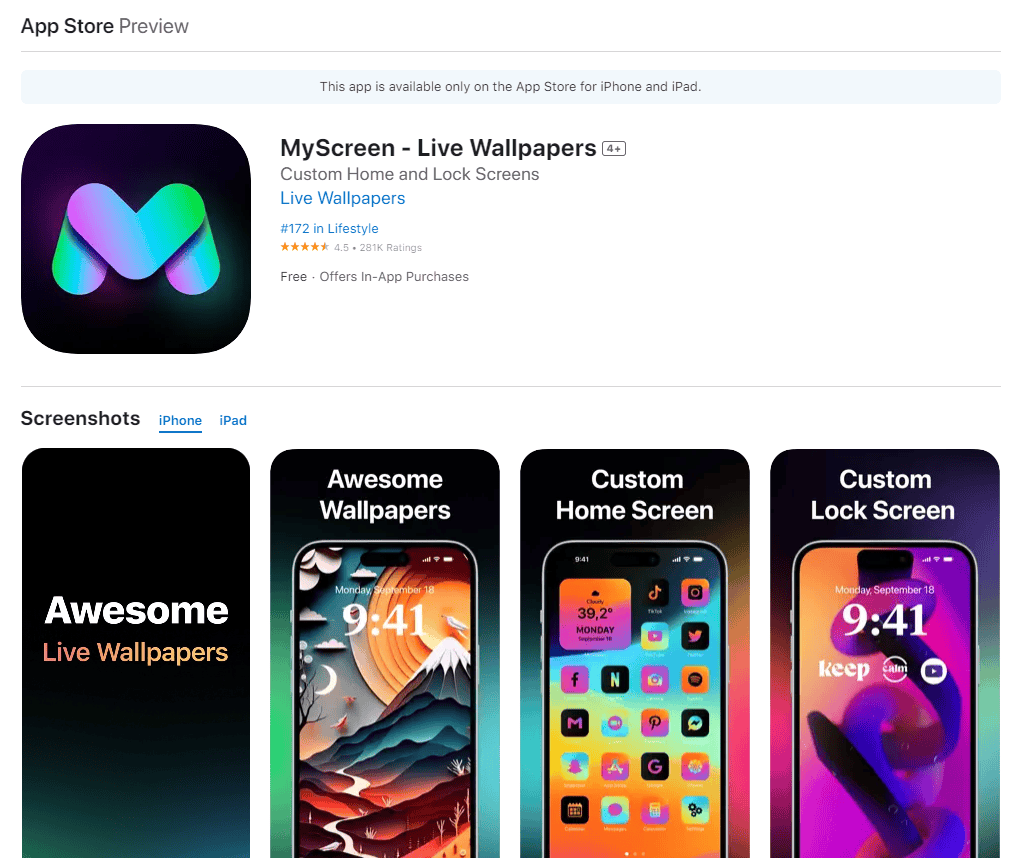
To turn video clips or GIFs into a live wallpaper, iPhone users will need to use an app since iOS does not have a built-in feature for this yet. One popular app for this purpose isIntoLivewhich can be found on the App Store. Follow these steps:
This now enables the user to pick from various dynamic wallpapers that were previously still images or videos, including those from common video platforms likeTikTok.
Leveraging Third-Party Apps
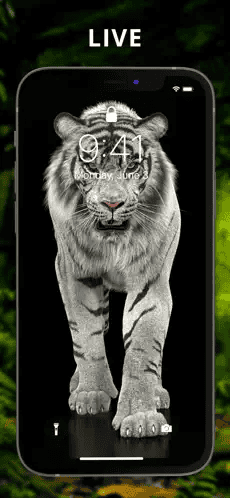
Third-party apps expand the customization capabilities of your iPhone’s wallpaper.Live Wallpapers Nowis another app users can explore for artistic and dynamic backgrounds. With these apps, one can:
Such apps make the lock screen more interactive, without the need for any tech skills.
Setting Up Live Wallpapers
To set your custom Live Photo or downloaded dynamic wallpaper as your lock screen or home screen background:
Be aware that live wallpapers are only animated on the lock screen and require a device with 3D Touch or a long press on models with Haptic Touch.
Optimization and Troubleshooting
Sometimes, even after setting a live wallpaper, it might not work as expected. It’s essential to check that:
These checks ensure that live wallpapers are set up optimally to match the device’s capabilities and user settings.
Enhancing User Experience
Creating a dynamic and personalized space on your iPhone can make everyday use more enjoyable. Live wallpapers are an excellent way to do this, but there are additional ways to spice up your experience.
Adding Widgets and Emojis
Adding widgets to your iPhone’s home screen can provide quick information at a glance. With iOS 14 and later, you can customize widgets for weather, calendar, and more. For a touch of personality, integrating emojis into widget titles or names can bring a playful element to your device’s interface.
Live Wallpaper Alternatives
While live wallpapers add motion to your lock screen, still images can also be an impactful choice. Static wallpapers from your photo library or pre-installed options on the device offer a wide range of styles without battery drain. For those seeking even more variety, free wallpaper applications are available on the App Store, providing a wealth of alternatives to the traditional live wallpaper.
Regular Updates and Compatibility
To keep your iPhone wallpaper experience smooth and current, frequent updates are vital. These updates ensure that wallpapers and widgets function correctly across different iPhone and iPad models. It also means that the system stays in sync with new iOS versions, preserving compatibility and performance from iOS 7 through to the latest version.
Frequently Asked Questions
Setting a live wallpaper on your iPhone can give your device a vibrant touch. This section covers common questions about creating and setting live wallpapers, ensuring you can personalize your iPhone with ease.
How can I create a custom live wallpaper for my iPhone?
To create a custom live wallpaper, use the Live Photos feature on your iPhone’s camera to capture a moving image. Alternatively, you can use third-party apps that enable you to convert videos or animations into Live Photos, which can then be set as a live wallpaper.
What are the steps to set a live photo as my iPhone’s wallpaper?
First, go to “Settings,” and then tap “Wallpaper.” Next, choose “Choose a New Wallpaper” and select the “Live Photos” album. Find the Live Photo you want, ensure “Live Photo” is on, and click “Set.” You can set it for either the Lock Screen, Home Screen, or both.
Is it possible to make a video my iPhone wallpaper, and if so, how?
Yes, you can set a video as your wallpaper by converting it into a Live Photo. You may need to use a third-party app to convert the video, then follow the same steps as setting a Live Photo as your wallpaper.
What is the process for establishing a live wallpaper on an iPhone, specifically for the latest iOS version?
For the latest iOS, navigate to “Settings,” then “Wallpaper,” and select “Choose a New Wallpaper.” Pick a Live Wallpaper from Apple’s stock options or use a Live Photo from your gallery. Preview it with a tap and hold, and then set it by tapping “Set.”
Where can I download live wallpapers suitable for iOS 17?
You can download live wallpapers from the App Store. Search for apps dedicated to live wallpapers, and you will find various options compatible with iOS 17.
Can I use a moving wallpaper on my iPhone, and how do I apply it?
Moving wallpapers, or live wallpapers, can be used on an iPhone. After selecting your Live Photo or a pre-made live wallpaper, apply it by going to “Settings,” choosing “Wallpaper,” then “Choose a New Wallpaper” and setting it as described above.
