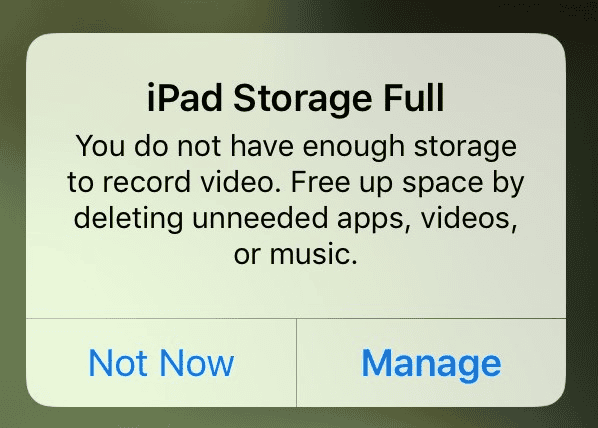
iPads are known for being both portable and powerful, but their limited internal storage capacity can be a problem for users who heavily rely on their devices for work, entertainment, or creativity. The downside is that you can’t internally expand the storage of your iPad, but the good news is that there are several external or digital options available.
you may add storage to your iPad without having to buy a new one by using cloud services like iCloud or Google Drive to store files online, which will free up space on your iPad. Additionally, you can connect external drives to your iPad for more storage. Some iPads work with USB drives or SD cards. Another option is to clean up your iPad’s storage by deleting old apps, photos, and files you no longer need. This will make room for new content without adding extra external storage.
Expanding Your iPad’s Storage: Creative Solutions
iPads are incredibly versatile devices, but their fixed storage can sometimes feel limiting. Fortunately, there are several effective ways to add more space to your iPad and ensure you have ample room for all your apps, photos, videos, and files.
Utilize Cloud Storage
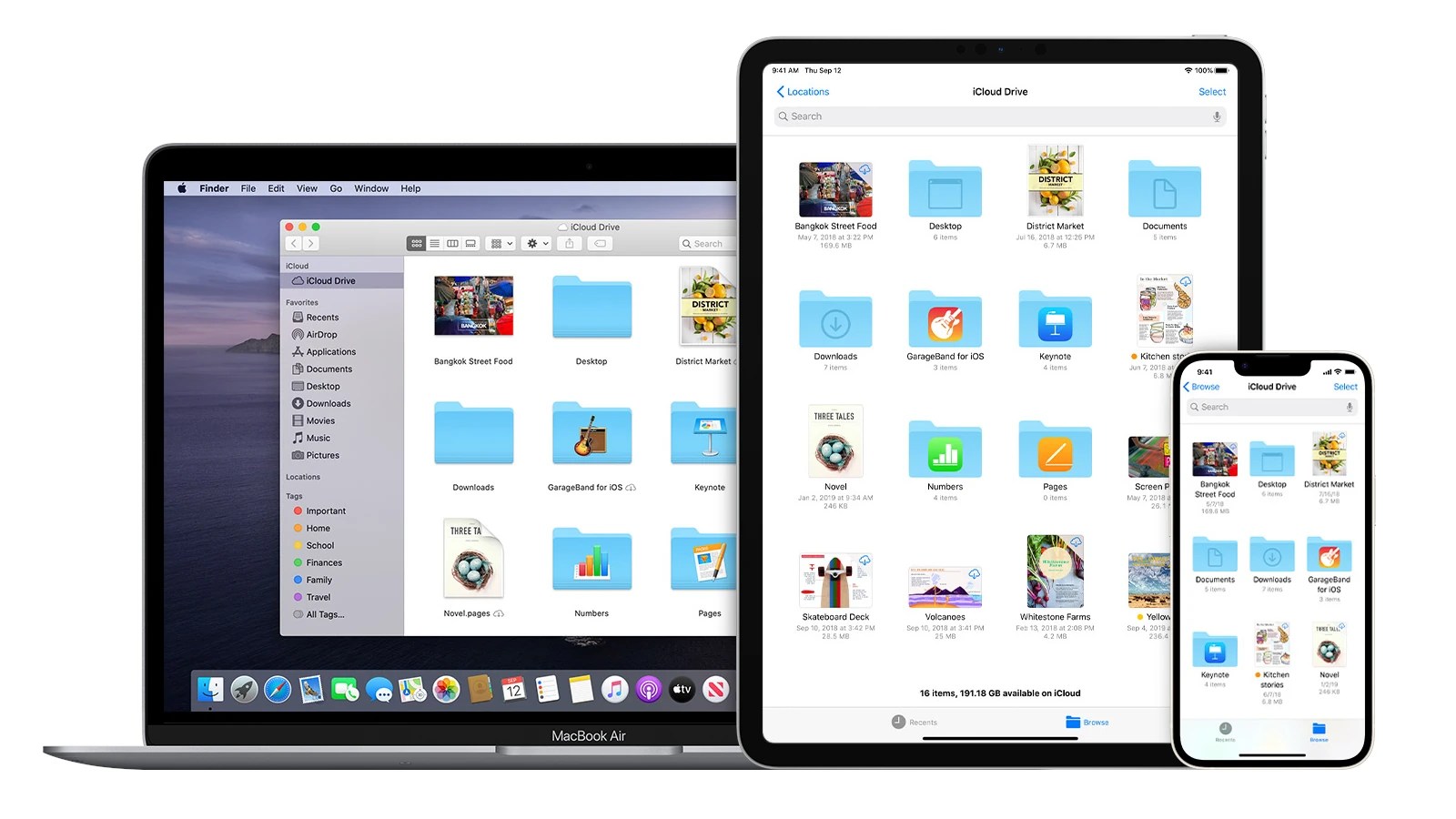
Cloud storage services like iCloud, Google Drive, Dropbox, and OneDrive offer a convenient way to store and access your files from anywhere with an internet connection. By offloading large files to the cloud, you’re able to free up valuable space on your iPad while still keeping your data accessible.
External Storage Devices
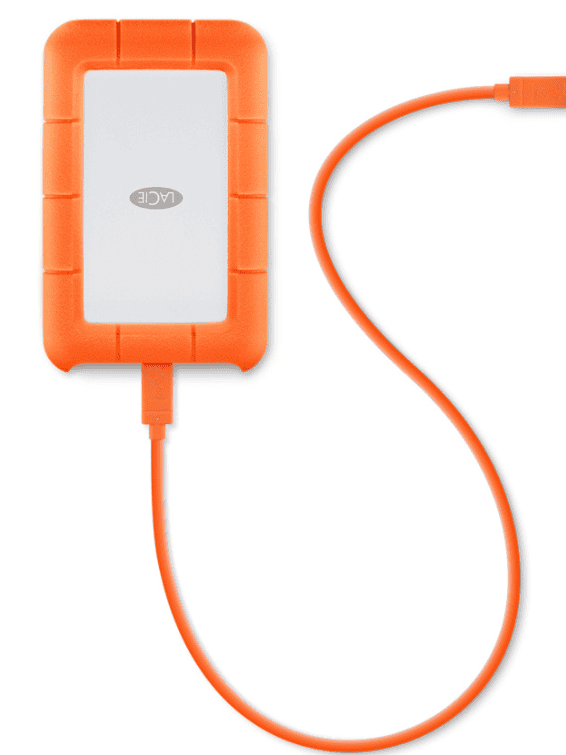
With the right adapter or cable, you can connect a variety of external storage devices to your iPad, including USB flash drives, SD cards, and portable hard drives. This allows you to easily transfer files to and from your iPad and store them on the external device, freeing up space on your iPad’s internal storage.
Streamline Your iPad’s Content
Regularly reviewing and managing the content on your iPad can help maximize your available storage. Here are some tips:
Comparison of Storage Expansion Methods
By strategically using a combination of these methods, you can effectively expand your iPad’s storage and ensure you always have enough space for your needs.
Key Takeaways
Expanding iPad Storage Using Cloud Services
Cloud services offer a simple way to add storage to your iPad. They let you keep files online and free up space on your device.
Understanding iCloud Storage
Utilizing Cloud Storage Options
Other cloud services work well with iPads too. Google Drive gives you 15GB free. Dropbox offers 2GB to start. Both let you store and share files. you’re able to get their apps from the App Store. These services sync your files so you can see them on any device. They’re great for big files like videos and music. You can also use them to back up important stuff. Some let you stream videos and music without taking up iPad space. This saves room for other things. Pick the service that fits your needs and budget best.
Optimizing Internal iPad Storage
Freeing up space on your iPadcan make it run faster and smoother. You can do this by getting rid of apps you don’t use and clearing out old data.
Managing and Deleting Unused Apps
To see which apps take up the most space go to Settings > General >iPad Storage. This shows a list of apps and how much space they use. Tap on an app to see more details. You can delete apps you don’t need right from this screen. Another option is to “Offload” apps. This keeps the app’s data but deletes the app itself. You can download it again later if needed.
Look for big apps you don’t use often. Games are often large file sizes. Delete or offload these to free up lots of space fast. Also check for old apps you forgot about. Getting rid of these can add up to a lot of extra space.
Clearing Cache and Other Data
Many apps store extra data called “cache” on your iPad. This can build up over time and take up space. To clear cache go to Settings > Safari. Tap “Clear History and Website Data.” This wipes out stored info from websites you’ve visited.
For other apps you may need to clear cache inside the app itself. Look in the app’s settings for an option to clear data. Some apps like Facebook have this feature.

Check your Photos app too. The “Recently Deleted” album keeps deleted photos for 30 days.Empty this to free up more spaceright away.