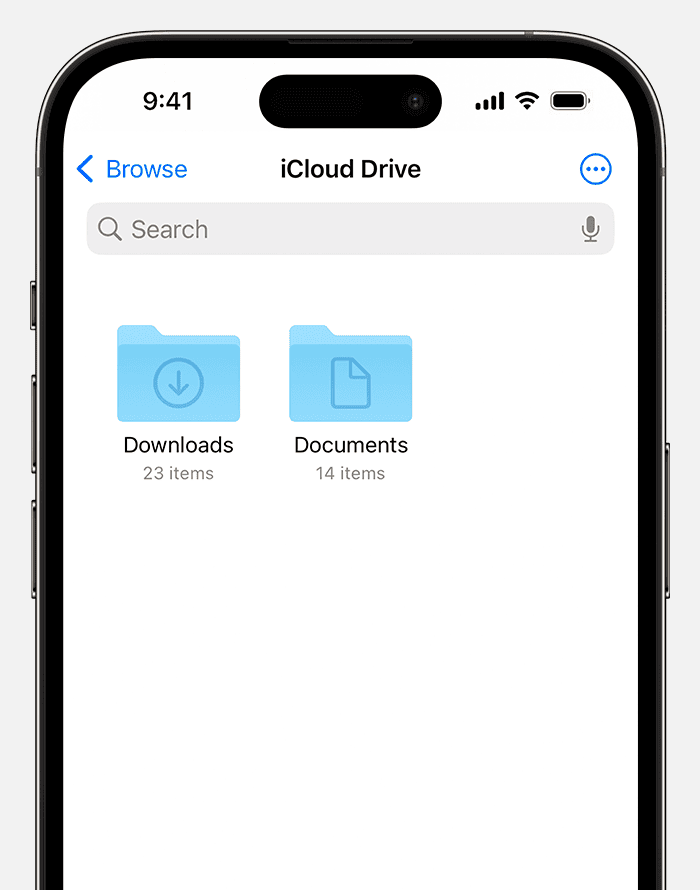
When trying to find downloads on an iPhone, users often look for a dedicated downloads folder as seen on computers. On the iPhone, the process is a bit different due to iOS and its design centered around user simplicity. Downloads are generally stored in the Files app which serves as a hub for all user documents and data. Within the Files app, the Downloads folder is typically linked toiCloud Drive, allowing easy access across devices.
Users can find their downloads by opening the Files app, which comes pre-installed on all iPhones running iOS. Once the app is open, navigating to the iCloud Drive or On My iPhone sections can lead to a folder specifically named Downloads. Here, users will find the files they’ve downloaded from the internet, email, or other apps. If the file was recently downloaded, it may appear in the Recents tab for quick access.
Files downloaded on an iPhone are not limited to one location. Photos may save directly to thePhotos app, and music files might go into Music. Understanding how tomanage where files are saved, and how to locate them, can greatly improve the efficiency ofusing an iPhone.
Unveiling the Mystery of iPhone Downloads
Ever downloaded a file on your iPhone and wondered where it vanished to? Unlike a traditional computer with a readily accessible downloads folder, iPhones handle downloads a bit differently. Let’s shed light on this often-confusing aspect of iOS and explore the various locations where your downloaded files might reside.
The Files App: Your Central Download Hub
The Files app is the primary destination for most downloads on your iPhone. Think of it as your iPhone’s file manager. Within the Files app, you’ll typically find a “Downloads” folder where many downloaded files, such as PDFs, documents, and images, are stored.
Location, Location, Location: It Depends on the App
While the Files app serves as the central hub, the exact location of your downloads can vary depending on the app you used to download them.
iCloud Drive: Syncing Your Downloads Across Devices
If you have iCloud Drive enabled, your downloads might also be stored in your iCloud Drive folder, making them accessible across all your Apple devices. This can be convenient for accessing files from your iPhone, iPad, and Mac.
Recent Downloads: A Quick Access Point
For recently downloaded items, you can often find them in the “Recents” section of the Files app. This provides a quick way to locate files you’ve downloaded without navigating through specific folders.
Exploring App-Specific Storage
Some apps, like social media platforms and messaging apps, might store downloaded media within their own app-specific folders. You can usually find these folders within the “On My iPhone” section of the Files app.
Tips for Managing Your iPhone Downloads
Finding Your iPhone Downloads: A Quick Guide
Key Takeaways
Locating Downloads on the iPhone
Finding downloaded files on an iPhone is straightforward. The Files app serves as a central spot for managing documents and media downloaded from the internet or transferred from other devices.
Using the Files App
The Files app is the default location to access and manage downloaded files on your iPhone. To start:
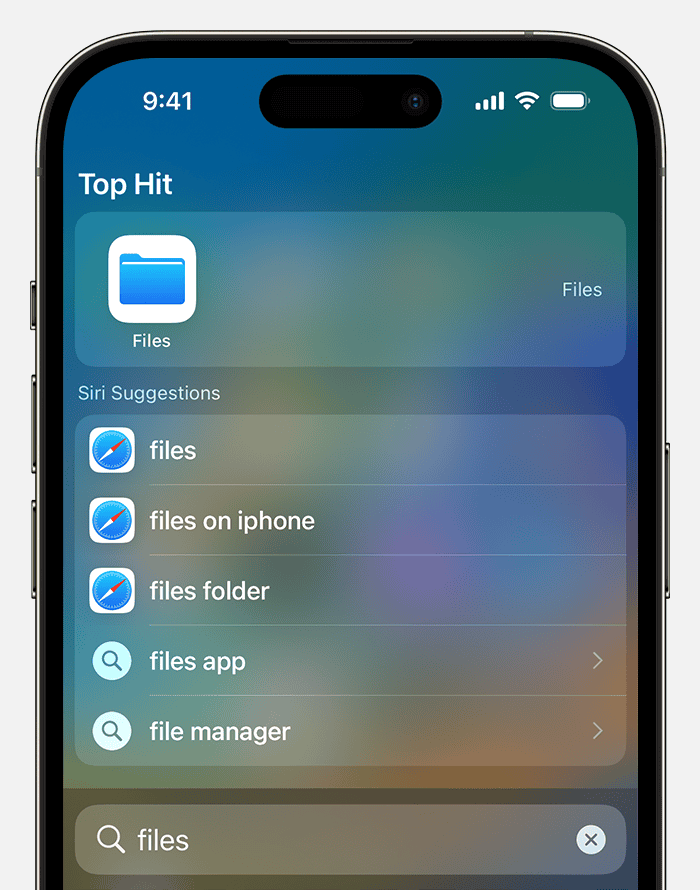
Files like PDFs, images, and other types can be saved and opened from this folder. With Spotlight search, simply swipe down on your Home screen, type “Files” in the search bar, and tap the app to quickly find your downloads.
Accessing from Apps
Some file types may open in specific apps:
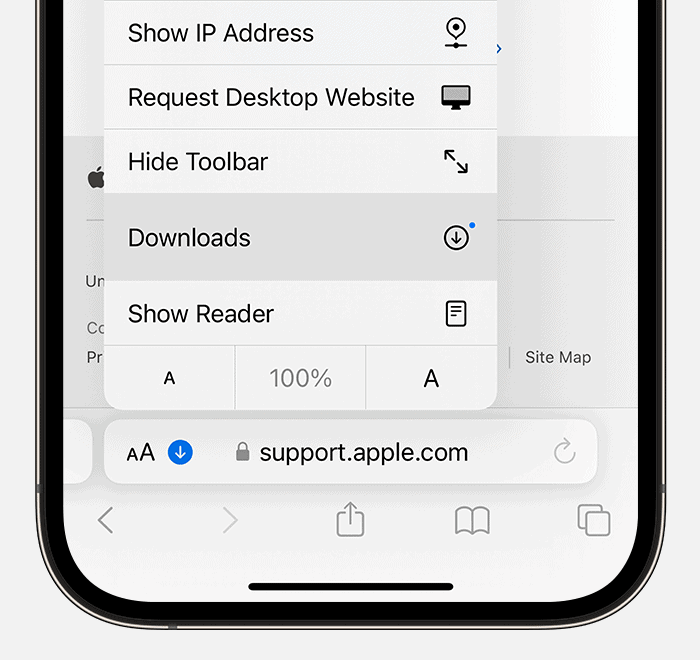
To find a file downloaded inSafari, tap thePage Settingsbutton next to the search field and selectDownloads. Files downloaded this way also sync to the Downloads folder in the Files app.
Managing Downloaded Content
In handling downloaded files on an iPhone or iPad, two key actions involve erasing files that are no longer needed and arranging the rest. This ensures the device remains clean and the user can find important files quickly.
Deleting Unwanted Files
Users candelete unnecessary downloaded filesto free up space. First,open the Files appfrom the Home screen. Navigate to the “Browse” tab and select iCloud Drive. Locate the Downloads folder. Here,swipe left on the fileyou wish to delete and tap “Delete”. you’re able to also use the search field to find a file by name and execute the same action.
Organizing Downloads
Organizing downloads saves time and trouble when searching for important documents later. Use the Files app to drag and drop files into folders within iCloud Drive or On My iPad. To keep important downloads handy, press and hold a file and select “Favorite”. you may also save files to iCloud Drive to access them across devices. For example, to move a file, tap and hold it until it lifts from the page, then drag it to the desired location. For a tidy view, sort files by name, date, size, or tags through the options in the “Browse” section.